PS1 BIOS Download Verified SCPH Files for ePSXe, DuckStation & RetroArch
You installed ePSXe or DuckStation, dropped in a PS1 ISO, and nothing happened. Maybe the emulator sat on a black screen. Maybe it flat out told you the BIOS was missing. The game file is fine, you're just missing the one small piece of firmware every PS1 emulator needs before it can boot anything at all.
That file is the PS1 BIOS. This page covers what it actually does, which SCPH version matches your game library, how to verify a file isn't corrupted before you trust it, and exactly how to set it up on ePSXe, DuckStation, and RetroArch on PC, Android, or iPhone.
What Is the PS1 BIOS and Why Do You Need It?
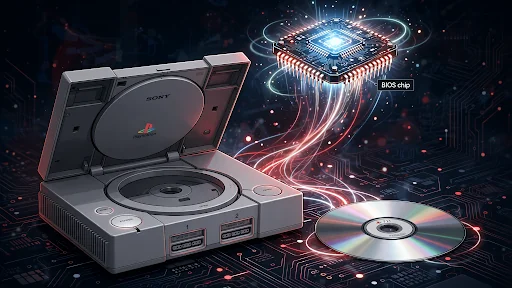
PS1 BIOS is the firmware Sony built directly into the original PlayStation console. It's the code that runs the instant you hit power, before any disc spins up, before the menu appears, before anything else on the system does its job.
Emulators like ePSXe, DuckStation, and RetroArch aren't running your PS1 games directly on your CPU. They're recreating what the original console's hardware did check the disc, initialize memory, load the system menu and the BIOS is the script that process follows. Without it, most emulators either refuse to start or run so inaccurately that games glitch, crash, or simply won't load.
Key Features of PS1 BIOS in Emulators
The BIOS isn't just a technical requirement it's also responsible for a handful of things that make emulated PS1 games feel like the real thing rather than a rough approximation.
Authentic Startup Sequence
When you turn on a real PS1, the Sony logo and startup sound appear before the game begins. The BIOS handles this opening sequence. With the right BIOS set up in an emulator, you'll see and hear the same intro before the game loads.
High Game Compatibility
Using a correctly matched, unmodified BIOS file is one of the biggest factors in whether a game runs cleanly. Region mismatches and corrupted dumps account for a large share of the compatibility complaints you'll find in PS1 emulation communities.
Memory Card Management
Save and load behavior on the PS1 was built around its own memory card format, and the BIOS is what handles reading and writing to that structure inside an emulator. Get this part wrong, and saves can behave unpredictably even when the game itself runs fine.
Improved Performance
A clean BIOS dump paired with modern emulator settings tends to run noticeably better than a mismatched or damaged one not because the BIOS itself is doing heavy lifting, but because emulators handle known-good firmware more predictably than files with unexpected quirks.
Audio & Video Synchronization
PS1 games from NTSC regions ran at roughly 60Hz, while PAL titles ran at 50Hz. Matching your BIOS to your game's actual region keeps audio and video timing aligned the way Sony's engineers designed it mismatch the two, and you'll sometimes notice audio drifting slightly out of sync during longer play sessions.
Difference Between PS1 BIOS and PS2 BIOS
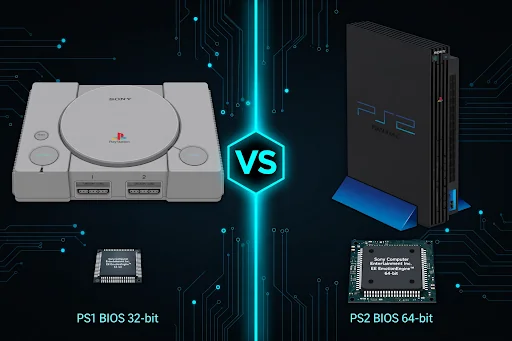
If you've set up a PS2 emulator before, it's worth being clear that PS1 and PS2 BIOS files are not interchangeable, despite both being Sony firmware.
The PlayStation 2 was built around a completely different processor the Emotion Engine, a 64-bit chip co-developed with Toshiba compared to the PS1's much simpler 32-bit R3000. The BIOS for each console is written specifically for that hardware, down to how it initializes memory and talks to the disc drive. A PS2 BIOS file won't boot a PS1 game in PCSX2 any more than a PS1 BIOS will run a PS2 title in ePSXe.
Which BIOS Should You Use?
Match the BIOS to the console generation of the games you're actually playing. If your library is entirely original PlayStation titles, you only need a PS1 BIOS. If you're running both PS1 and PS2 games which is common, since the PS2 is backward compatible with original PlayStation software you'll need one BIOS file for each system, kept in separate folders so your emulators don't get confused about which one to load.
BIOS vs ISO vs ROM
This mix-up trips up a lot of people new to emulation, and it's worth clearing up before you go looking for files.
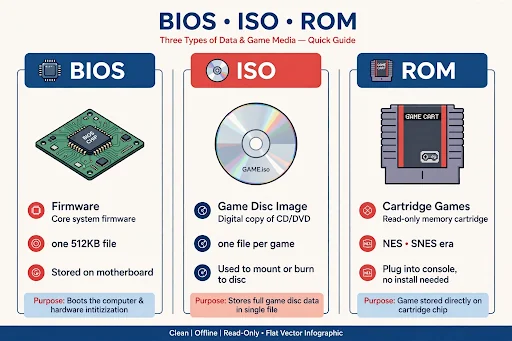
BIOS is firmware one small file, roughly 512KB for the PS1, that stays the same no matter which game you're about to play. You need exactly one, matched to your region, before anything will boot.
ISO is a digital copy of a game disc, usually created from the original CD. Every title has its own ISO file, and none of them will run without a BIOS already sitting in your emulator's folder.
ROM is an older term that comes from cartridge-based systems NES, SNES, Genesis and got carried over loosely into disc-based emulation too, even though PS1 games were never cartridges. Searches like “PS1 BIOS ROM” and “BIOS ISO PS1” often refer to the same thing: a PlayStation BIOS file, even though the terms aren't technically accurate.
PS1 BIOS Download All Regions
| Region | Standard | Common Files | Notes |
|---|---|---|---|
| USA (NTSC-U) | NTSC | SCPH1001.BIN, SCPH5501.BIN | Widest compatibility, most-used version overall |
| Europe (PAL) | PAL | SCPH5502.BIN, SCPH7502.BIN | Runs at 50Hz, matches PAL/European releases |
| Japan (NTSC-J) | NTSC | SCPH5500.BIN | Required for untranslated Japan-exclusive titles |
| Worldwide / Other | Mixed | SCPH7003.BIN | Functionally close to the US BIOS, used for Brazil and some Asia releases |
USA (NTSC-U) BIOS SCPH1001.BIN / SCPH5501.BIN
Many players choose this version because it works with a large number of English-language PS1 games and is supported by most popular emulators.
Europe (PAL) BIOS SCPH5502.BIN / SCPH7502.BIN
Built for the PAL broadcast standard at 50Hz rather than NTSC's 60Hz. European-exclusive titles and PAL disc releases expect this specific version.
Japan (NTSC-J) BIOS SCPH5500.BIN
Needed for Japan-only releases that never got a Western localization. Runs at NTSC's 60Hz like the US version, just tied to Japan's regional lockout.
Worldwide / Other Variants SCPH7003.BIN
Covers Brazil and a handful of other markets. It's functionally close to the US BIOS in most respects, though some emulator cores specifically expect it to be renamed to match the US filename before they'll recognize it worth knowing if a file seems to be doing nothing despite loading correctly.
Which PS1 BIOS Is the Best?
If you only take one thing from this section: match the BIOS region to your game's region, and default to the USA when you're not sure. SCPH1001.BIN and SCPH5501.BIN between them cover the vast majority of the PS1 library and are the two most commonly recommended files across every emulator's own documentation. Japanese exclusives need SCPH5500.BIN, and PAL-region titles run best on SCPH5502.BIN.
You don't have to pick just one permanently, either most emulators let you keep every regional file in the same folder and switch between them depending on which game you're loading.
Where to Download PS1 BIOS Safely
The cleanest method, with zero legal ambiguity, is dumping the BIOS from a physical PS1 console you personally own. That's the approach every major emulator's documentation quietly points toward, even the ones that don't say it outright.
Third-party download sites are common, and most people end up using one at some point. If you do, a few practical checks help avoid a bad file: confirm the file size looks right (roughly 512KB for a standard PS1 BIOS), avoid anything bundled inside an installer .exe rather than a plain archive, and check the file against a known checksum before trusting it which is exactly what the next section walks through.
How to Verify PS1 BIOS File Integrity (Checksum/MD5)
The Beetle PSX core used in RetroArch publishes the official checksums for the three standard regional files, which gives you something concrete to check against:
| File | Region | MD5 Checksum |
|---|---|---|
| SCPH5500.bin | Japan (NTSC-J) | 8dd7d5296a650fac7319bce665a6a53c |
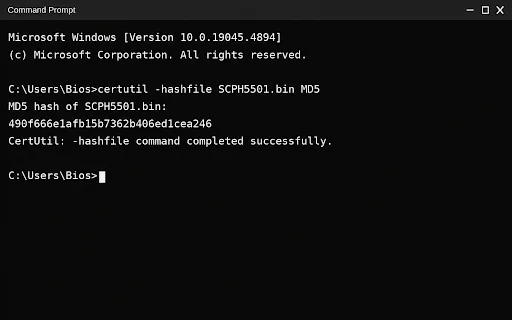
| SCPH5501.bin | USA (NTSC-U) | 490f666e1afb15b7362b406ed1cea246 |
| SCPH5502.bin | Europe (PAL) | 32736f17079d0b2b7024407c39bd3050 |
- On Windows: Open Command Prompt and run certutil -hashfile filename.bin MD5, then compare the output against the table above.
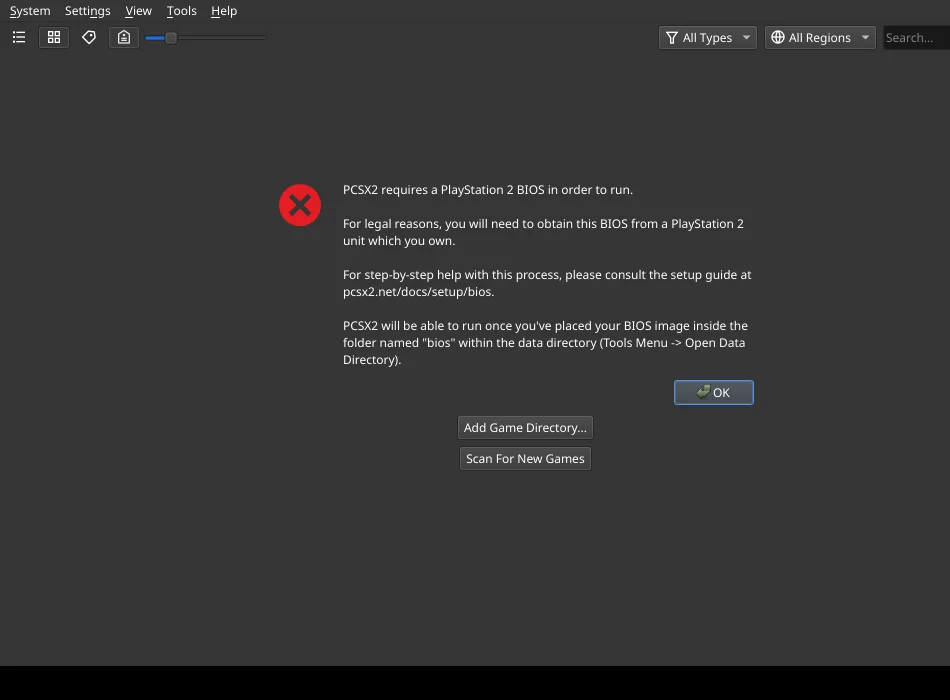
- On macOS: Open Terminal and run md5 filename.bin.
- On Android: Apps like Hash Checker or ZArchiver's built-in checksum tool can verify the file before you import it into your emulator.
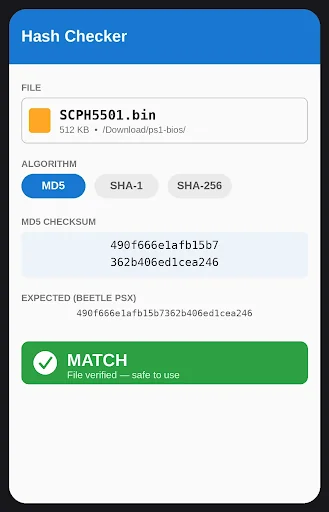
If the hash you get doesn't match, don't use that file find a different source or, if you have access to a real console, dump a fresh copy yourself.
Why Choose Our PS1 BIOS Downloads?
A few practical reasons this is worth using over a random search result: every file listed here is checked against the official checksums published above, region and model numbers are labeled accurately rather than guessed at, and the setup steps below are written from actually going through the process on each emulator rather than copied from a generic template.
Supported Emulators for PS1 BIOS
ePSXe (Windows & Android)
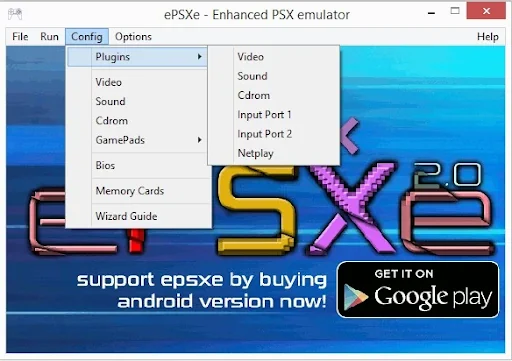
One of the oldest names in PS1 emulation, first released October 14, 2000, by three developers working under the aliases calb, Demo, and Galtor. Development actually stalled for years after version 1.6.0 in 2003, with rumors that the source code had been lost entirely the team resurfaced in 2008 with version 1.7.0 and has kept releasing updates since, with the current PC build sitting at version 2.0.18. ePSXe is closed-source aside from its plugin API, and it uses a plugin-based system for graphics, sound, and CD-ROM handling an approach first pioneered by an earlier tool called PSEmu Pro.
DuckStation (Windows, Android & Linux)
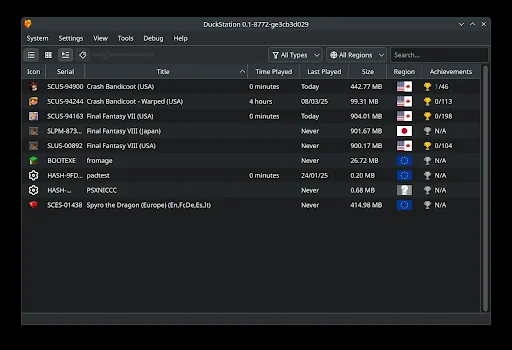
A newer, actively maintained project started in August 2019 by a developer known as "stenzek," who has also contributed to the GameCube/Wii emulator Dolphin. DuckStation is open source under the GPLv3 license on desktop platforms and has become one of the most recommended PS1 emulators available, largely on accuracy and a clean Qt-based interface. Its own documentation is direct about BIOS requirements: an image from any hardware version or region will work, though mismatching game and BIOS regions can cause compatibility issues which lines up exactly with the region-matching advice throughout this page.
RetroArch (Windows, Android, iPhone, macOS & Linux)
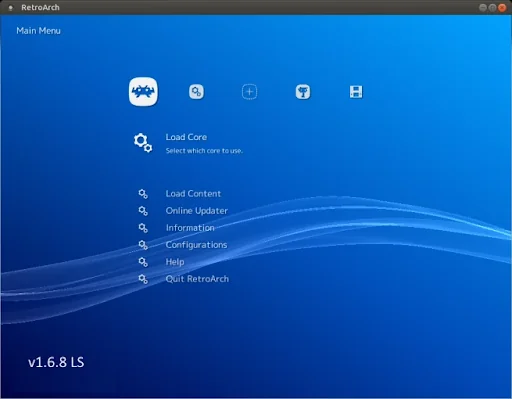
RetroArch isn't a standalone PS1 emulator on its own it's a multi-system front-end that runs PS1 games through separate "cores," each one essentially a self-contained emulator plugged into the same interface.
Beetle PSX / Beetle PSX HW
A fork of an emulation core called Mednafen, adapted to work inside RetroArch through the libretro API. Beetle PSX prioritizes accuracy with a software renderer, while Beetle PSX HW adds hardware-accelerated rendering through OpenGL or Vulkan for better performance on modern hardware. Interestingly, Beetle PSX doesn't strictly require a user-supplied BIOS at all if none is provided, it automatically falls back to an open-source replacement called OpenBIOS, though real hardware BIOS files remain the more accurate and widely recommended option.
SwanStation
A newer core option that's shown up as an alternative to Beetle PSX within RetroArch, generally offering a more modern feature set closer to what standalone DuckStation provides, since it's derived from similar underlying emulation work.
PCSX ReARMed
An ARM-optimized fork of the older PCSX emulation codebase, tuned specifically for lower-powered ARM-based devices. It's often used on Android devices with less processing power than desktop computers.
How to Set Up PS1 BIOS on PC (ePSXe, DuckStation & RetroArch)
Step 1: Download the Required Files
You'll need three things: an extraction tool like 7-Zip or WinRAR, your PS1 BIOS file, and whichever emulator you've decided to use.
Step 2: Extract the Files
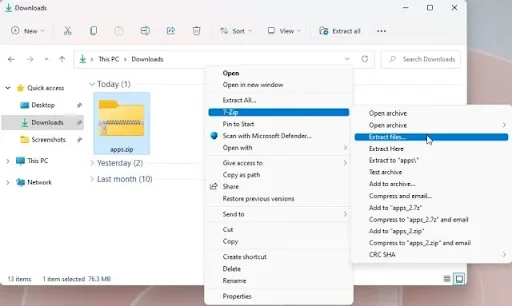
Unzip the BIOS archive to get the raw .bin file, and unzip your emulator's download if it came as a compressed package too. Move the extracted BIOS file into a dedicated folder you'll remember you'll need to point every emulator back to this location.
Step 3: Install Your Emulator
Run the installer or extract the portable build, depending on which emulator you picked. Nothing unusual here compared to installing any other desktop application.
Set Up BIOS in ePSXe
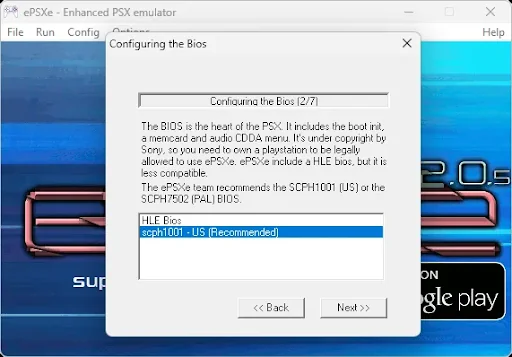
Open ePSXe, go to Config, then select the BIOS option. Browse to your extracted .bin file and select it the emulator will list it once it's recognized correctly.
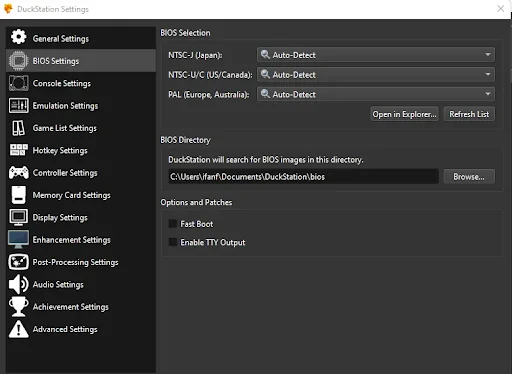
Set Up BIOS in DuckStation
On first launch, DuckStation walks you through a short setup wizard. When it asks for a BIOS directory, browse to your folder and select your file. It'll confirm detection before you move on.
Set Up BIOS in RetroArch
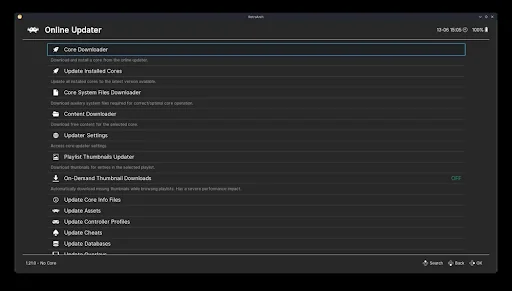
First, install a PS1 core Beetle PSX, Beetle PSX HW, SwanStation, or PCSX ReARMed through Online Updater > Core Downloader. Then check Settings > Directory to confirm where your System/BIOS folder actually points, and place your extracted .bin file directly inside it. Load the core, then load your game content, and it should pick the BIOS up automatically.
How to Set Up PS1 BIOS on Android & iPhone
Step 1: Download the Required Files
You'll need your PS1 BIOS file, ZArchiver (or a similar app) if anything is compressed, your chosen emulator from the Play Store or App Store, and your game files.
Step 2: Extract the Files
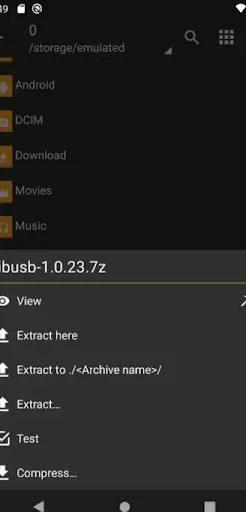
Install ZArchiver, then extract your BIOS archive to get the standard .bin file in a folder you can navigate to from within your emulator.
Set Up BIOS in ePSXe (Android)
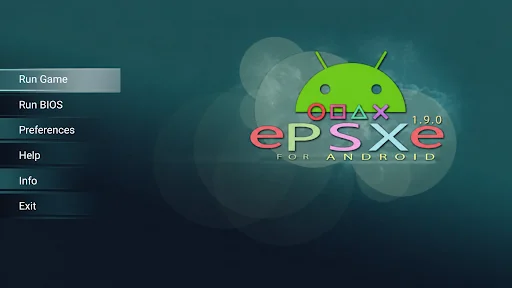
Open the app, tap Run Bios, then BIOS Preferences, then the BIOS Files option. This opens your phone's internal storage locate and select your extracted file.
Set Up BIOS in DuckStation (Android)
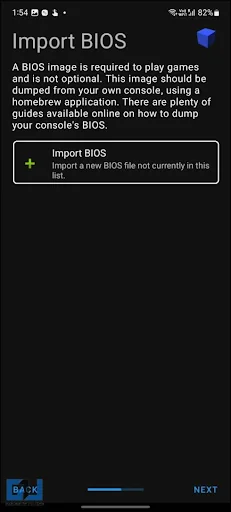
Step through the welcome screens until you reach the BIOS import page. Tap the "+" icon or Import BIOS option, browse to your file, and select it.
Set Up BIOS in RetroArch (Android)
Move your BIOS file into RetroArch's system folder, typically found at /storage/emulated/0/RetroArch/system/. Then open the app, go to Load Core > Download a Core, and grab whichever PS1 core you want to use. It'll detect the BIOS automatically once both are in place.
Set Up BIOS in RetroArch (iOS)
The process is similar but goes through the Files app instead of a general file manager place your BIOS file in the RetroArch/system directory (or whichever System folder you've configured inside the app), then confirm under Settings > Directory > System/BIOS that RetroArch is pointing at the right location before loading a core.
Common PS1 BIOS Errors and How to Fix Them
BIOS Not Detected
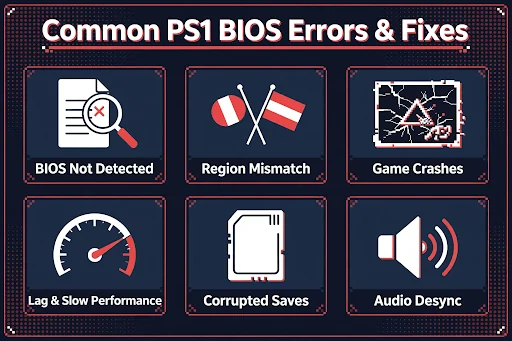
Issue: The emulator doesn't recognize the file often because it's still zipped, renamed incorrectly, or sitting in the wrong folder. This comes up most in DuckStation, since it specifically expects the file inside its System/BIOS directory to auto-detect it.
Fix: Extract fully, confirm the filename matches what the emulator expects, and place it directly in the correct BIOS folder.
Game Crashes After Boot Screen
Issue: The BIOS screen shows up fine, but the game itself crashes shortly after. Usually points to a corrupted or wrong-region BIOS.
Fix: Re-download a fresh copy and confirm it matches your game's actual region before trying again.
Lagging or Slow Performance
Issue: The game runs, but noticeably slower than it should.
Fix: Switch renderers try OpenGL or Direct3D11/12 instead of Vulkan if you're seeing issues lower the resolution setting, or try a lighter emulator like DuckStation if your hardware is on the older side.
Region Mismatch Error
Issue: The BIOS and game region don't line up, so the game won't run correctly.
Fix: Match the BIOS to the game SCPH5501.bin for USA titles, SCPH5502.bin for Europe, SCPH5500.bin for Japan.
Corrupted Save Files
Issue: Save data won't load, or the emulator crashes when accessing it usually a memory card handling issue.
Fix: Clear old saves and create a fresh virtual memory card in the emulator's settings, and make a habit of saving properly before exiting rather than force-closing.
Game Freezes or Stutters During Gameplay
Issue: Sudden freezing or stuttering, often during cutscenes specifically.
Fix: Check that your game file isn't corrupted, adjust video sync settings, or try a different BIOS file if the issue is consistent across multiple games.
Disc/Game Image Not Detected
Issue: The emulator can't load your game's ISO or BIN file.
Fix: Confirm the file isn't corrupted and is in a supported format converting to a clean ISO and pointing the emulator directly at it usually resolves this.
Graphics Glitches or Screen Tearing
Issue: Visual artifacts, tearing, or missing textures during gameplay.
Fix: Update your graphics plugin or core settings, and enable V-Sync if it isn't already on.
High CPU Usage or Overheating
Issue: Your device is working harder than it should for a PS1 title, causing heat or slowdown.
Fix: Lower resolution and disable texture filtering or shader effects you don't need PS1 emulation shouldn't be demanding on modern hardware, so this usually points to an unnecessary setting left on.
Audio Desync or Distorted Sound
Issue: Sound falls out of sync with gameplay, or comes through distorted.
Fix: Check audio latency settings and confirm your BIOS region matches your game's frame rate standard a PAL BIOS running an NTSC game is a common, overlooked cause of this specific issue.
Conclusion
Getting PS1 emulation working comes down to three things: the right regional BIOS file, a correctly configured folder path for whichever emulator you're using, and knowing which handful of errors to expect if something doesn't click immediately. Once that's sorted, ePSXe, DuckStation, and RetroArch all handle the console's library reliably a catalog that, across its eleven-year production run, grew to roughly 7,900 individual titles, the second-most of any console in gaming history.
Frequently Asked Questions
Do all PS1 emulators require a BIOS?
Almost all of them do for accurate emulation, with one notable exception: RetroArch's Beetle PSX core will fall back to an open-source replacement called OpenBIOS if you don't supply a real one, though a genuine BIOS file remains more accurate and widely recommended.
Can I use the same PS1 BIOS on Windows, Android, and macOS?
Yes. The same .bin file works across every platform only the folder location changes depending on which emulator and OS you're using.
Is ePSXe still a good PS1 emulator?
It's still actively maintained and reliable, though DuckStation has generally overtaken it in popularity due to better accuracy and a more modern interface.
Can I use PS1 BIOS without an internet connection?
Yes, once the BIOS and game files are already in place on your device, no internet connection is needed to play.
Does RetroArch require a PS1 BIOS?
It's strongly recommended for accuracy, though the Beetle PSX core specifically can run without one thanks to its OpenBIOS fallback.
Can one BIOS file run every PS1 game?
Not reliably. A single regional BIOS covers most games from that region well, but titles from other regions may run into compatibility or timing issues without a matching file.
Does the BIOS improve game performance?
Not directly a correct, undamaged BIOS mainly improves stability and compatibility rather than raw speed. Performance comes down more to your emulator's rendering settings and your device's hardware.
Can I use one BIOS file for multiple emulators?
Yes. The same file works across ePSXe, DuckStation, and RetroArch you just need to place a copy in each emulator's expected folder location.
Is DuckStation better than ePSXe?
DuckStation is generally considered more accurate with a cleaner interface and more active development. ePSXe still works reliably, but most current recommendations lean toward DuckStation for new setups.